 tenax
tenaxGet started / Your first session
From your computer
to your iPhone.
You need a computer you own, a terminal on it, and an iPhone with a Tenax TestFlight invitation.
The iPhone app is in a private beta. There’s no public signup link yet. You can install the host now, but you need the app to use Tenax on your phone.
Sign in on your iPhone
Open your TestFlight invitation. Install Tenax. Open the app and sign in.
If the app says approval is needed, approve this iPhone from a device already approved on your account.
Use the same account for all your computers. Signing in alone does not approve every new device.
Install on your computer
Run the command for your OS on the computer that will hold your sessions.
Choose your computer’s OS
Linux
curl -fsSL https://tenax.jackolab.com/install.sh | shLinux x86_64 or ARM64. Run in your terminal, as your own user. Read the installer.
macOS
curl -fsSL https://tenax.jackolab.com/install.sh | shApple Silicon. Run in Terminal, as your own user. Read the installer.
Windows
iwr -useb https://tenax.jackolab.com/install.ps1 | iexWindows x86_64. Run in PowerShell. No administrator required. Read the installer.
The interactive installer starts service setup for you. It prints a sign-in code and QR.
Installer says “next: tenax service install”?
Run this only if the installer prints that next step:
tenax service installIf
tenaxis not found, follow the installer’s PATH note first.Installer says tmux is missing?
The Unix installer tries to install bundled tmux. Older releases may need system tmux instead.
On macOS with Homebrew:
brew install tmuxOn Debian or Ubuntu:
sudo apt install tmuxThen run
tenax service installas your own user.Install an older version?
Pin a release tag — on Linux and macOS:
curl -fsSL https://tenax.jackolab.com/install.sh | sh -s v0.1.21On Windows, each release ships its own stub:
iwr -useb https://tenax.jackolab.com/v0.1.21.ps1 | iexAn already-installed host moves the same way:
tenax update v0.1.21.Linux runs a user service that survives logout. macOS and Windows start Tenax at user login. Headless Macs and Windows computers need a logged-in user.
Approve your computer
Scan the terminal’s QR with your iPhone camera. Open it in Tenax and tap Approve.
Or open the app’s Settings. Select Approve a computer and enter the terminal’s sign-in code.
Approve only a sign-in code your own computer shows right now. The installer then finishes service setup.
Set up the host before you have the app?
Open the printed approval link in a browser — signing in there approves the computer.
Use that account when you sign in on your iPhone. You still need a TestFlight invitation to install the app.
Open your first session
Tap your host in the app. Tap a session to attach.
No sessions yet? Tap + to create one. Name it and open it.
Your shell runs on the host. Start your usual tools there.
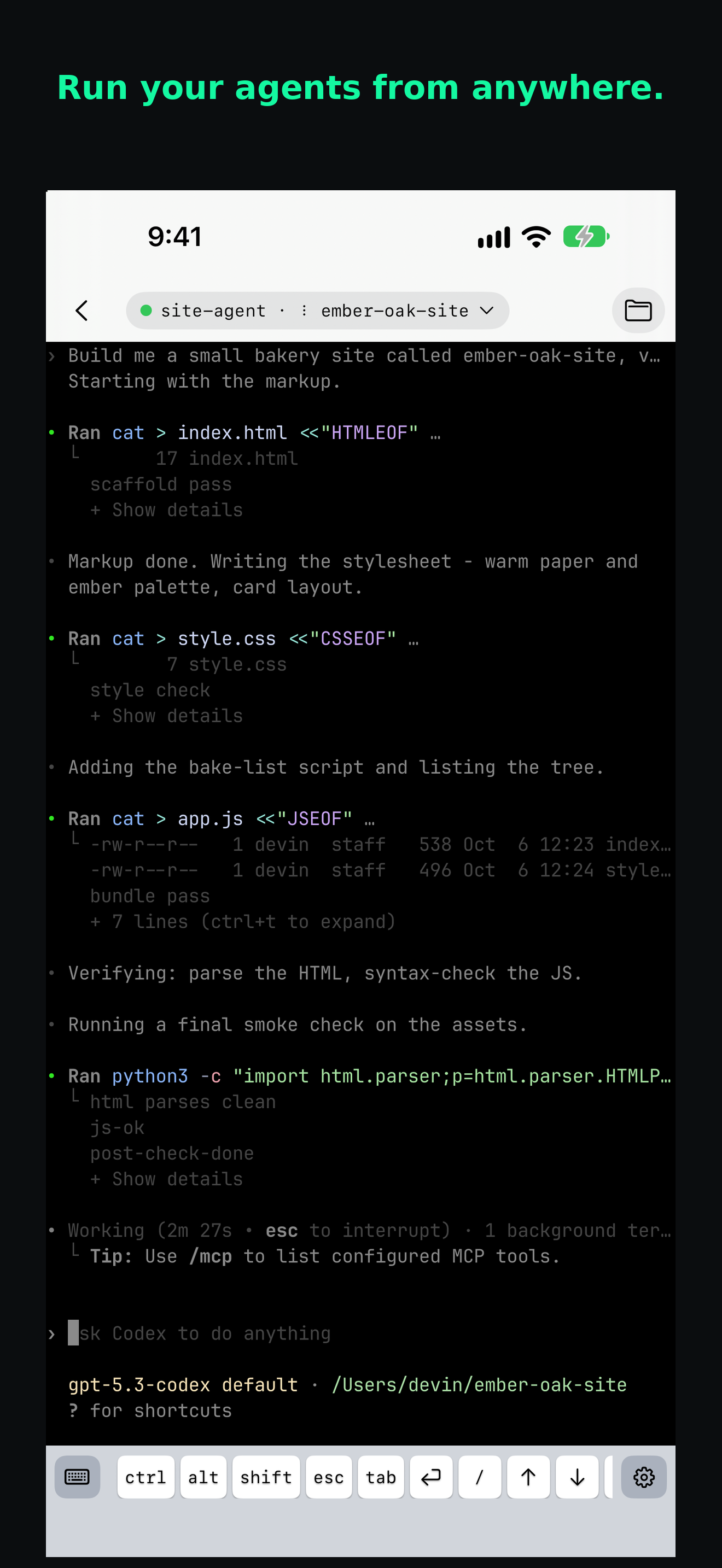
A native key row for your shell. Create a session from another terminal?
Sign this terminal client in, then create and open a session:
tenax logintenax new worktenax attach --session workSigning in also uses device approval. If you have several hosts, add
--host "Home computer"to new and attach.
Where your files live
Open Files in the app to browse the host. Home is the default shared root.
Other roots can appear on supported hosts. The command tenax files roots lists their paths.
A logical path such as /notes.txt means a file inside the shared Home root. It does not mean the computer’s filesystem root.
If something stops you
The host is missing or offline
Check that the app uses the account that approved this host. On the host, run:
tenax service statusIf setup did not finish, run tenax service install and complete approval.
Keep the host awake. On macOS and Windows, its user must be logged in.
The sign-in code expired
Run tenax service install again for a fresh sign-in code. Sign in on your phone before you scan it.
The terminal freezes after a network change
Return to the session in the app. The host keeps the shell while the phone reconnects.
Connection recovery is still being refined in beta. A frozen phone view does not prove the host session has stopped.
Copy is unavailable
Select the command text and copy it yourself. All install commands remain readable without JavaScript.
Keep the reference close.
Sessions, files, devices, and host updates.
Browse commands