 tenax
Guide / Codex
Codex on your phone,
on any of your computers.
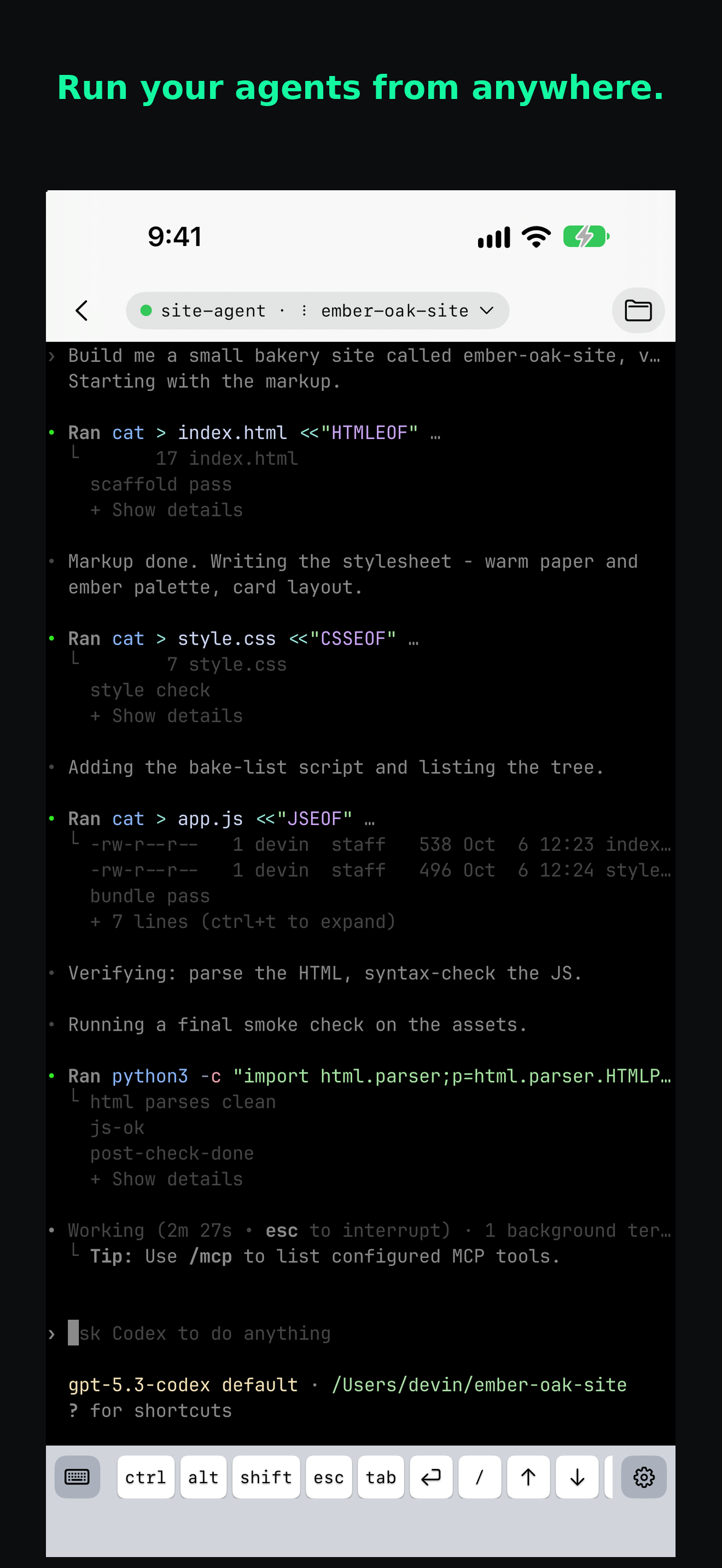
The Codex CLI keeps running on your own Linux, macOS or Windows computer. Tenax opens that same session on your phone, so you can follow it, approve it, and answer it from anywhere.
The terminal Codex already runs in
You start codex in a session on your computer, the same way you do at your desk. Tenax holds that session on the computer and shows it in a native app on iPhone, iPad or Android.
Close the app, lose signal, or change networks. Codex keeps working on your computer. Open Tenax again and the session is where you left it.
Tenax sends a notification when Codex needs your approval, finishes, or fails. Tap it to open that session and answer.
Every computer you own, in one list
Run Codex on a Linux VPS, a Windows computer and a MacBook. Tenax shows each one, with its sessions and their state. Switch between them in a tap.
See the 5-hour and weekly limits of each Codex account on your computer.
Set up Tenax
- Install Tenax on your phone, open it, and sign in.
- Install Tenax on the computer where you use Codex. Approve its sign-in code on your phone.
- Open a session and run
codex.
On Linux or macOS:
curl -fsSL https://tenax.sh/install.sh | shOn Windows, in PowerShell:
iwr -useb https://tenax.sh/install.ps1 | iexThe computer connects out. No DNS, port forwarding, or VPN app to configure. Install and sign in to Codex on the computer itself.
More on your phone
- Use Ctrl, Alt, Esc, and Tab from the key bar.
- Browse, upload, and download the files beside the shell.
- Run Claude Code, Grok or a plain shell in the next session.
Your terminal is encrypted from your computer to your phone. Not even we can see your sessions. How Tenax protects your session →
Compare
Take Codex with you.
One installer for your computer, one app for your phone.
Get started